Everyone you love, on one calm list.
A step-by-step guide to the Inviteeq guest list: add families, send personal links, follow replies for every event, and nudge gently.

A wedding guest list is rarely one list. It is a rehearsal dinner for close family, a ceremony and reception for everyone, a farewell brunch for whoever is still in town, and a grandmother who will only come to the ceremony. The Inviteeq guest list keeps all of that in one place. Here is how to use it, from the first name you add to the last gentle reminder.
Think in families, not names
Open your invitation and choose Guests. Everything on this page is organised by family: one household that receives one invitation and replies together. A family can be a couple, a whole household, or one person. Counting in families matches how invitations are actually sent, and the page still shows how many people each family brings.
Build your list in minutes
Bulk add is the quickest start. Upload a CSV, paste rows straight from a spreadsheet, or pick people from your phone's contacts file. Put one family per line with their name, how many are coming, a phone number, an email address, and tags. Only the name is required. You then confirm which column is which and check a preview before anything is imported, and anyone already on your list is skipped.
- Add a header row such as Name, Party size, Phone, Email, Tags, and the columns are matched for you
- Write “Anna & Tom” and they are counted as two people
- Use tags like bride’s family, friends, or work to filter the list later
- Download the template if you are starting from a blank spreadsheet
Decide who is invited to what
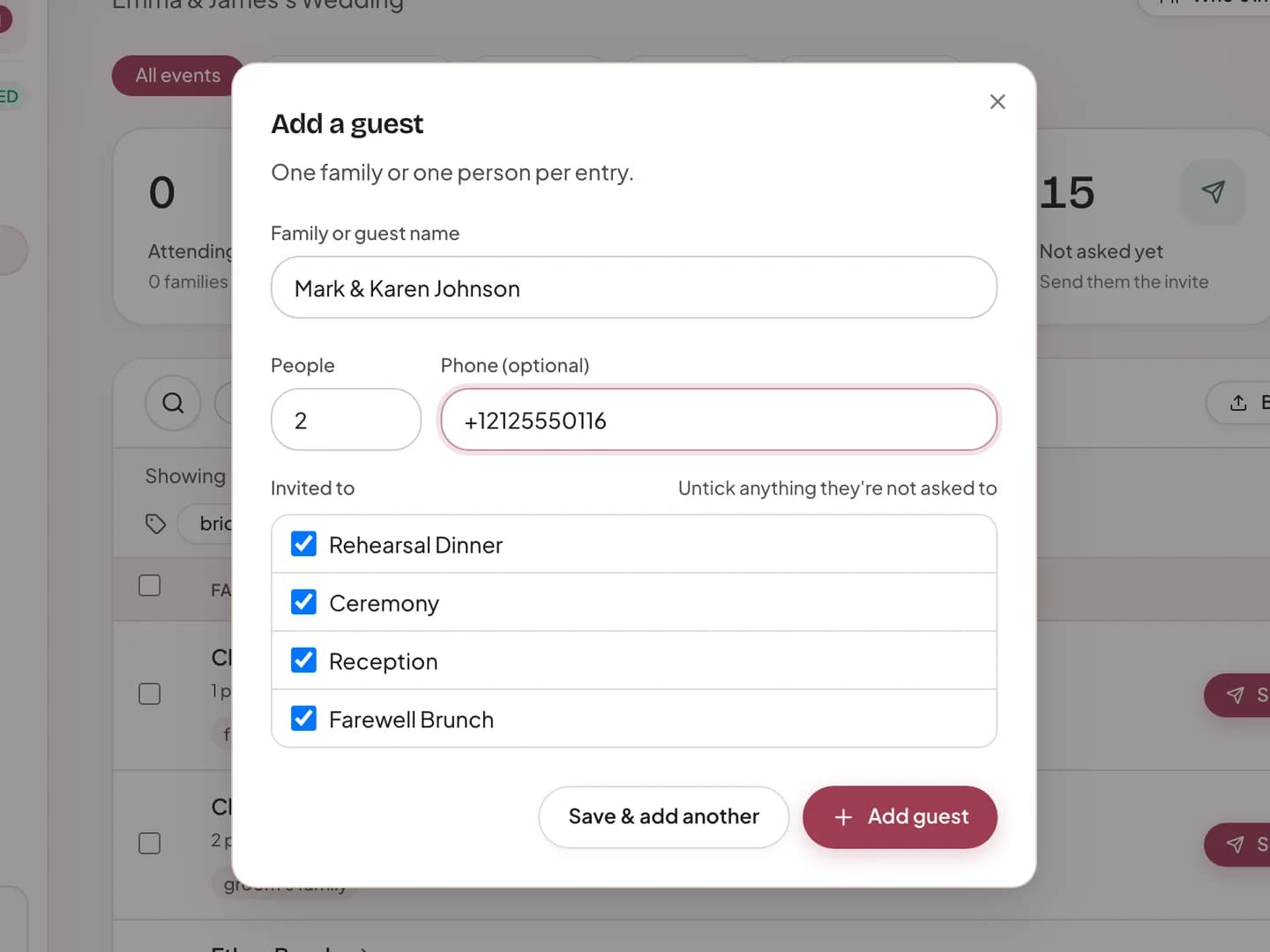
When you add a family by hand with Add guest, every event is ticked. Untick anything they are not asked to, and each event keeps its own guest count. Save & add another keeps the form open when you have several to enter. You can change these choices later from the family's own page.
Send each family their own link
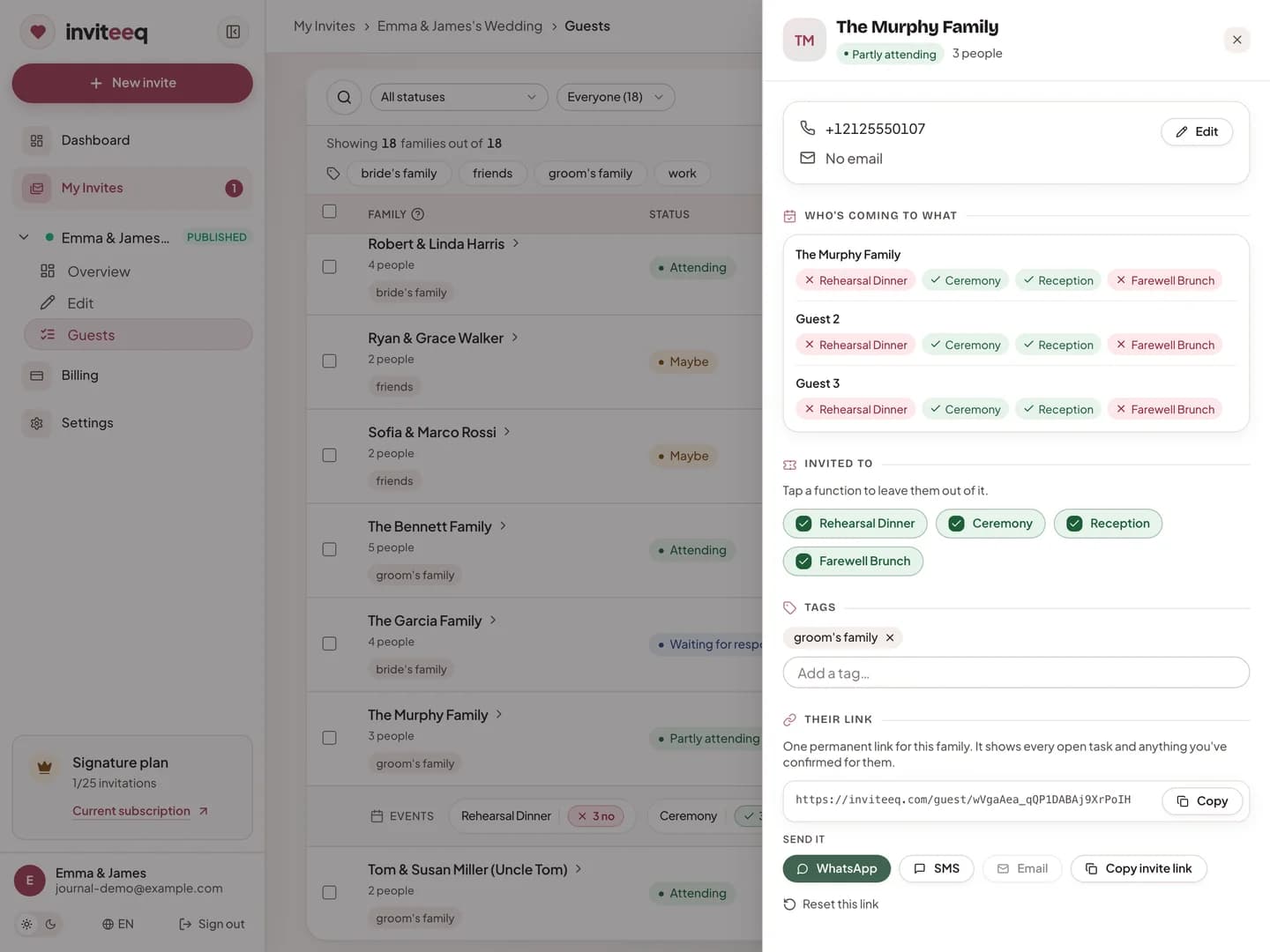
Tap a family's name to open their page. Under Their link you will find one permanent link for that family, with buttons to send it by WhatsApp, SMS, or email, or to copy it. Send invite on the list opens WhatsApp with a short message and their link already written, and moves the family to Waiting for response. If you invited people another way, select them and choose Mark as sent.
If a link has been forwarded somewhere it should not be, choose Reset this link. The old link stops working and the family's answers are kept, so you only need to send the new one. Personal links are included on paid plans; the free plan does not include them.
What your guests see
Your guests open the invitation from their link and reply in one short form. It greets the family by name, knows how many of them are invited, and asks which celebrations they can attend. There is nothing to sign up for and nothing to download.
Follow the replies, event by event
Replies sort themselves into five groups at the top of the page: attending, maybe, waiting for a response, not asked yet, and can't attend. Choose an event above them to see the numbers for that event alone, which is what your caterer will ask for. Expand a family's row to see their answer for each event, or open the family to see who is coming to what.
Some guests will reply by phone or in person. Open their family and choose Record RSVP, then tap yes, no, or maybe for each event. It is saved as your edit, so the list stays complete.
Walk-ins and duplicates
If you also share your invitation's public link, some replies will come from people without a personal invite. These are marked as walk-ins so you can check who they are. When a walk-in shares a phone number or email address with a family already on your list, Review duplicates offers to combine them, and their answers move to that family. For someone new, choose Add as invited.
Follow up gently
In the guest list Settings, switch on Chase up quiet guests. Choose how many days to wait and, if you like, write a short message to go above their link. Families who have not replied by then are flagged, and Remind sends them their link again. Nothing is sent automatically.
Links you send yourself from your phone are always free. Automated WhatsApp nudges use WhatsApp credits, which come with some paid plans. Settings shows how many credits you have left.
A short checklist
- Add every family, with a phone number where you have one
- Untick the events each family is not invited to
- Send each family their own link, or mark them as sent
- Check each event's numbers before you confirm with vendors
- Review walk-ins and duplicates as replies arrive
- Turn on Chase up quiet guests a week or two before your RSVP date
Written by Inviteeq Editorial, with care for every celebration.